 pocket-ui
Home › Guide
Your first evening
From the welcome screen to Continue, with pictures
Your card is flashed and in the handheld? Then this is your first evening with pocket-ui, from the welcome screen to the moment you come back to a game the next day.
No card yet? Get it: pick your handheld, flash one card, pop it in. Three steps, and your handheld's own system stays as it is.
The screens in this guide are drawn by pocket-ui itself from a made-up library with real box art. Your handheld gets the same screens laid out for its own display.
1The first start
A short setup opens the first time pocket-ui runs, in four steps: your language, Wi-Fi, your games, and how they stand. (The very first start sets up the card and restarts once by itself; give it a couple of minutes.) B or L1 goes one step back, START skips the rest, and L2 switches on Big text anywhere in it. You can run it again later: Settings → Help & tools → First-start setup.
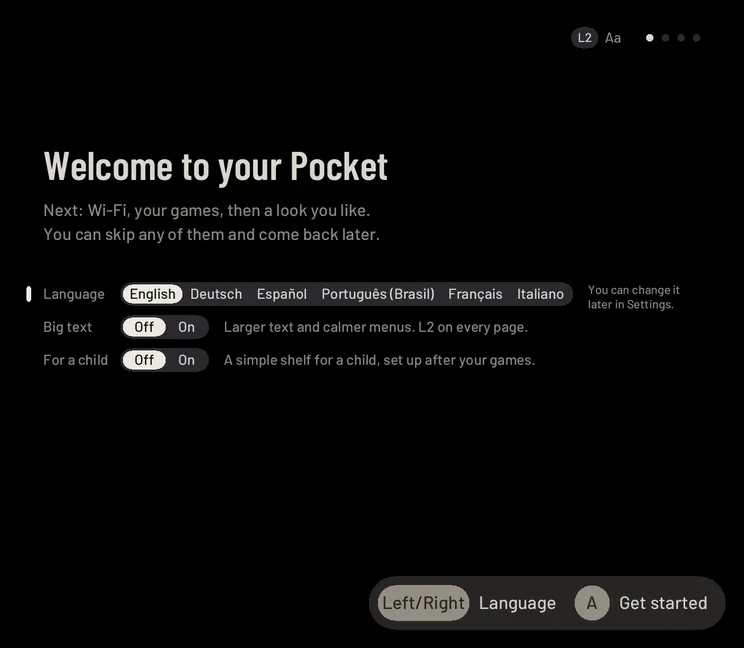
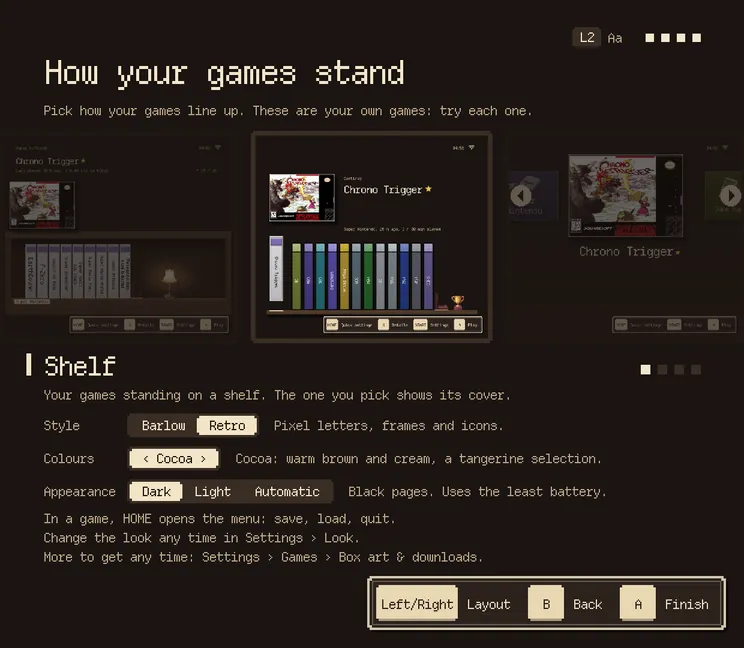
On the Wi-Fi step it guesses your time zone and asks only once (type Wien or Viena if it asks). On Your games, box art is one switch, and it says what it found. Everything is optional, and nothing is downloaded before you say so.
2Add games
pocket-ui comes with no games, so bring your own. Open Settings → Games → Add games:
- From your phone: press Y, scan the code with your phone's camera and pick your games. They land in the right folder by themselves.
- From your computer: switch on File sharing. It shows an address and a password; open it on your computer and drag your games into the folder of their system (
gba,snes…). BIOS files you own go intobios. - No games at hand? An empty shelf offers the starter pack: free homebrew games, one press.
No Wi-Fi on your handheld (RG28XX, RG35XX 2024)? Your card has a GAMES drive your computer can open. On the TrimUI Brick, games go straight into the card's Roms folder. Coming from another card? Bring your folders as they are.
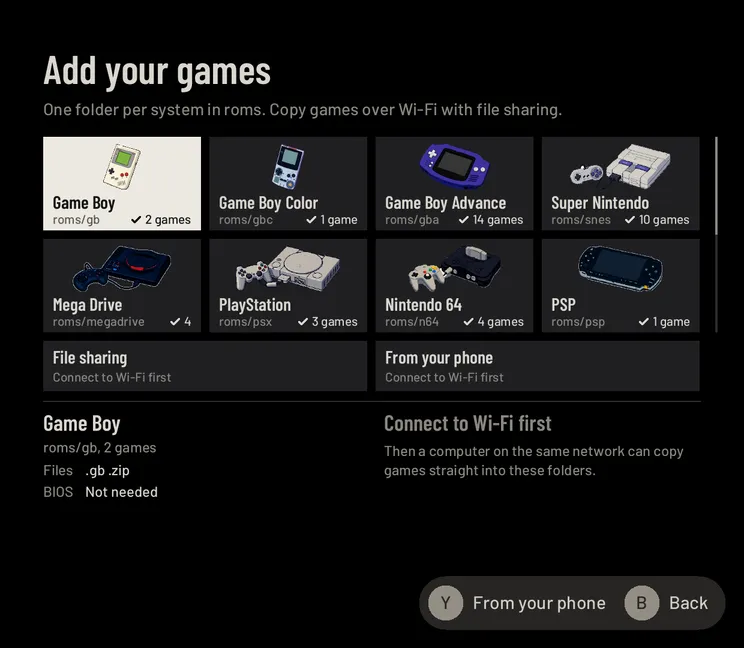
Games in? Run Game check (Settings → Games → Game check): it tells you which games are ready and what the others need, and it never deletes anything. With Wi-Fi, pocket-ui can also fetch box art for you.
3Play, pause and continue
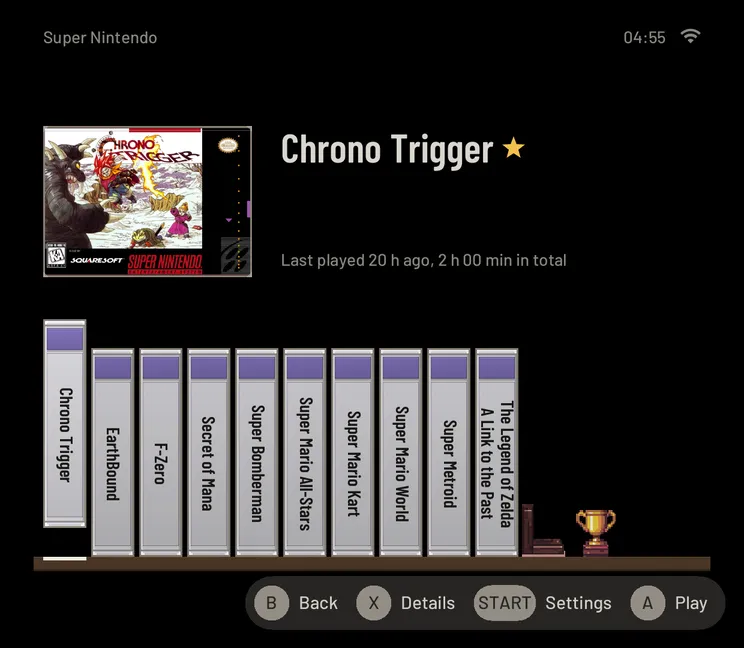
Pick a game and press A. Move with the D-pad; L1 and R1 jump five games, L2 and R2 jump by letter. Y stars a game, X shows its card with facts and your notes. START opens Settings.
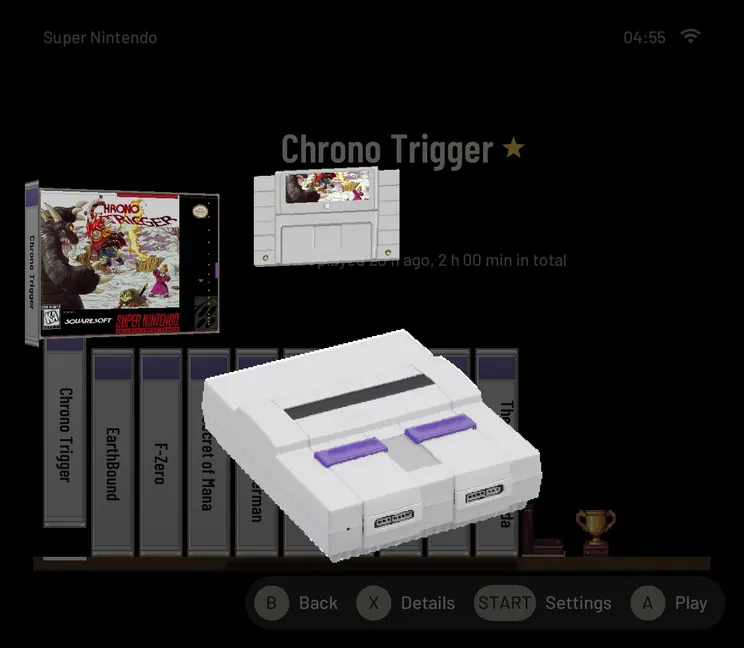
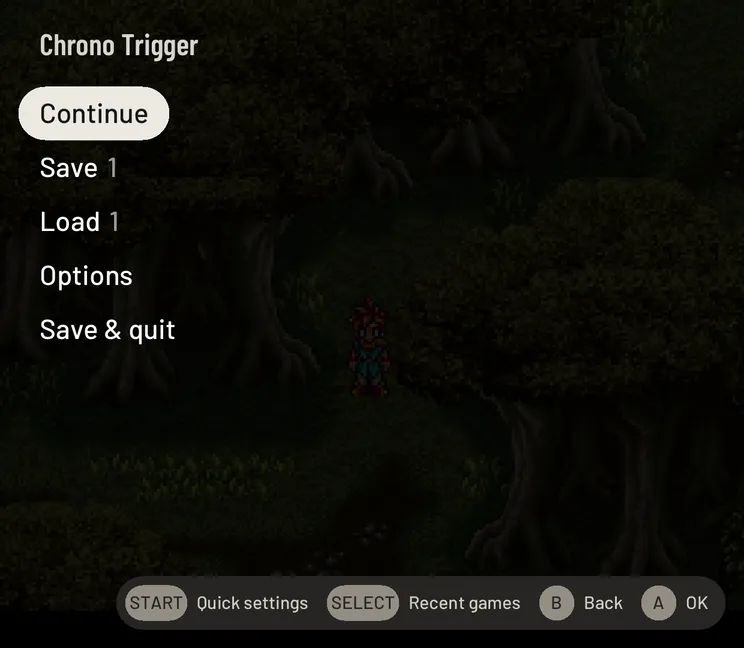
Pause
Tap HOME any time (on Anbernic handhelds it's the MENU key). The game pauses and the menu opens over it: Continue, Save, Load, Options and Save & quit. START opens the quick settings (brightness, volume, Wi-Fi). B or another tap on HOME goes back into the game.
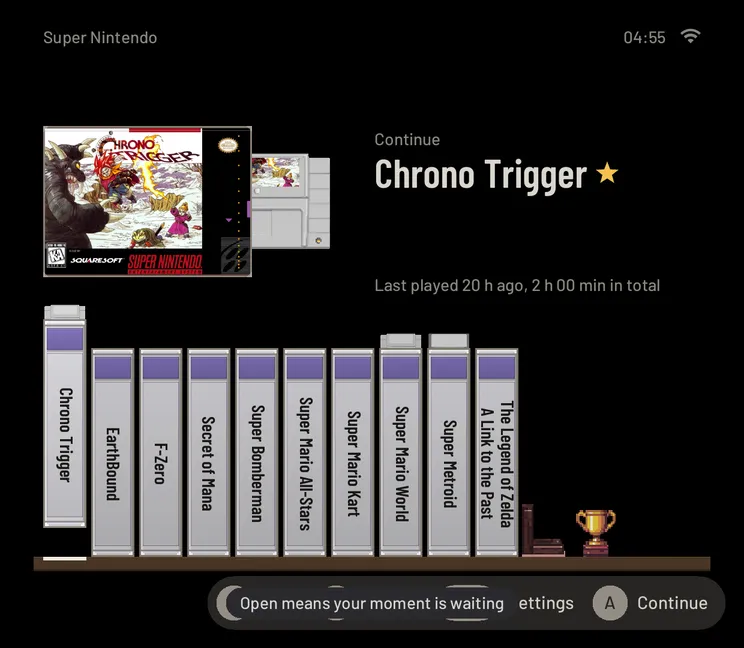
Save & quit, and come back
Save & quit keeps where you are and takes you to the shelf. Your last five games with a saved moment then stand a little open: an open case means a moment is waiting. Press A (it says Continue), and you're back in that exact moment: a fraction of a second on Game Boy, Super Nintendo, Game Boy Advance and PlayStation. PlayStation 2 and GameCube boot first, so they take longer.
That's your first evening. Settings has everything else, Features shows what else there is to find, and the FAQ has quick answers. Want your old system back? Switch off and put your original card back in.
pocket-ui is based on ROCKNIX and is not made or endorsed by the ROCKNIX team. Game footage and box art belong to their owners.